
New to AI? Learn what Gradio is and why it’s so useful. Discover how to create an interactive PyTorch image classification app in just a few lines of code.
📌 Introduction: Why Should You Care About Gradio?
Ever trained a machine learning model and struggled to show it to someone who isn’t a developer?
Enter Gradio.
Gradio is a free, open-source Python library. It lets you create beautiful, browser-based UIs for your machine learning models. You need zero web development experience.
Whether you're sharing a demo with stakeholders or making a portfolio project interactive, Gradio connects the model to the user. It effectively bridges the gap between them.
🧰 What is Gradio?
Gradio is an interface builder designed for ML practitioners. You can use just a few lines of Python code. It wraps your model function inside a drag-and-drop interface that runs in your browser.
✅ Key Features:
- Works with any Python model (PyTorch, TensorFlow, Hugging Face, scikit-learn, etc.)
- Lets you define input and output types like images, text, audio, etc.
- Supports live previews, API sharing, and Hugging Face integration
⚙️ How Gradio Works
At the core of Gradio is the Interface() class:
pythonCopyEditgr.Interface(fn=predict, inputs="image", outputs="label")
fn: Your model inference functioninputs: Type of input (e.g., "image")outputs: Type of output (e.g., "label")
It then launches a local web server to interact with your model—no need to build HTML or JavaScript code!
🧪 Let’s Build: PyTorch Image Classifier with Gradio
We’ll demonstrate a simple image classifier. We will use a pretrained ResNet-18 model from PyTorch. Then, we'll build a Gradio interface to upload an image and get predictions.
🔧 Step 1: Install Required Packages
bash
pip install gradio torch torchvision
🧠 Step 2: Load Pretrained PyTorch Model
python
import torch
import torchvision.transforms as transforms
from torchvision import models
from PIL import Image

# Load ResNet-18 model pre-trained on ImageNet
model = models.resnet18(pretrained=True)
model.eval()
🖼 Step 3: Define Image Preprocessing
python
preprocess = transforms.Compose([
    transforms.Resize(256),
    transforms.CenterCrop(224),
    transforms.ToTensor(),
    transforms.Normalize(
        mean=[0.485, 0.456, 0.406],
        std=[0.229, 0.224, 0.225]
    )
])
🧾 Step 4: Load Labels
You can download ImageNet labels from GitHub or Hugging Face:
python
import requests

LABELS_URL = "https://raw.githubusercontent.com/pytorch/hub/master/imagenet_classes.txt"
labels = requests.get(LABELS_URL).text.strip().split("\n")
🧮 Step 5: Define Inference Function
python
def predict(image):
    image = image.convert("RGB")
    input_tensor = preprocess(image).unsqueeze(0)  # Add batch dimension
    with torch.no_grad():
        output = model(input_tensor)
        probabilities = torch.nn.functional.softmax(output[0], dim=0)
    # Get top prediction
    top_prob, top_class = torch.topk(probabilities, 1)
    return {labels[top_class.item()]: float(top_prob)}
🚀 Step 6: Build and Launch Gradio App
python
import gradio as gr

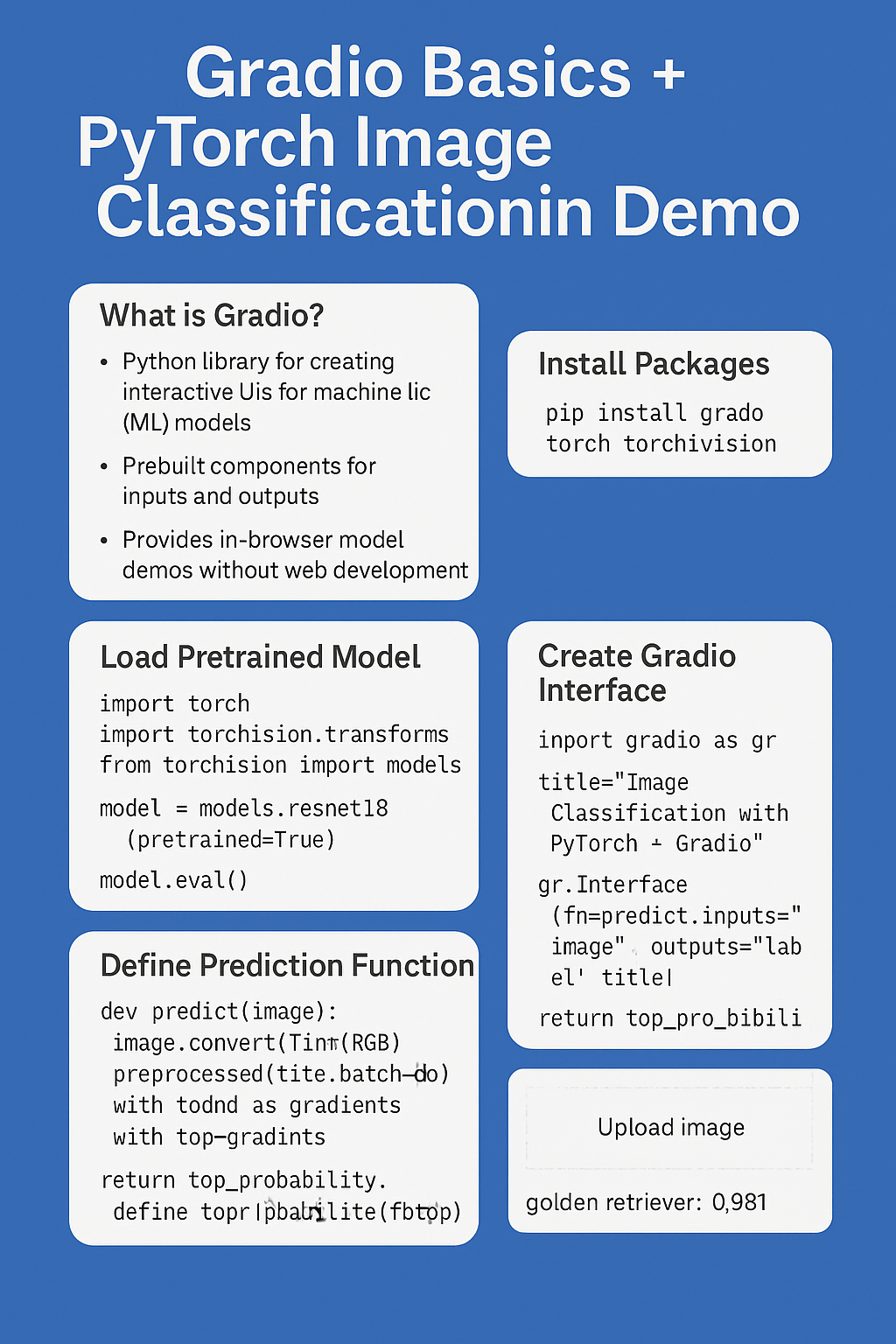
interface = gr.Interface(fn=predict, inputs="image", outputs="label")
interface.launch()
This opens a browser where you can upload an image and get real-time predictions.
🧑🏫 Bonus: What Makes This Useful?
✅ Education:
Let students interact with models directly instead of reading just code.
✅ Prototyping:
Quickly test model ideas with non-developers or stakeholders.
✅ Portfolios:
Showcase your ML projects interactively on your resume or GitHub.
🛠 Sample Output
Let’s say you upload an image of a golden retriever—Gradio returns something like:
json
{
  "golden retriever": 0.981
}
No terminal logs, no Jupyter notebooks—just a clean browser UI.
📤 Share It With The World
Gradio also supports:
- Hosting on Hugging Face Spaces
- Creating public shareable links
- Embedding inside web apps
You can add:
python
interface.launch(share=True)
This will give you a public URL to share your model.
🚧 Limitations to Know
| Feature | Limitation |
|---|---|
| Deployment | Not meant for production-scale apps |
| UI Customization | Limited without digging into CSS |
| Batch Inference | Not built for high-throughput prediction |
For serious deployment, you’d want to wrap this in Flask, FastAPI, or deploy using Docker.
🔚 Conclusion
Gradio democratizes machine learning demos. In under 50 lines of Python code, we’ve:
- Loaded a pretrained PyTorch model
- Created an image classifier
- Launched an interactive browser app
Whether you're a student, a data scientist, or an AI startup founder, Gradio is your friend. It helps you show your ML models to the world.
🧠 TL;DR – Gradio in a Nutshell
| Aspect | Summary |
|---|---|
| What is it? | Python library for interactive ML demos |
| Key Feature | Browser UI for any model function |
| Use Case | Demos, portfolios, experiments |
| Code Needed | ~20–50 lines |
| Works With | PyTorch, TensorFlow, HuggingFace, etc. |